Select any image to view it full size. Personal details are hidden.
Before you start
Keep Gmail and Aurora open in separate browser tabs.
Use Gmail on a computer
Forwarding and filter settings are available in Gmail on the web, not in the Gmail mobile app. Sign in to the Google account that receives your receipts.
Check your sending address in Aurora
Your Aurora sign-in email is already accepted. If you forward from another address, add and confirm it in Settings → Import → Forwarding addresses.
Copy your Aurora import address
Open Settings → Import in Aurora and copy your import address. You will paste it into Gmail in the next section.
Add Aurora as a forwarding address
First, tell Gmail where to send your receipts.
Forward only the mail you choose
Leave “Forward a copy of incoming mail” turned off. The filters you create in section 4 will forward matching receipts without forwarding your entire inbox.
Open Gmail’s forwarding settings
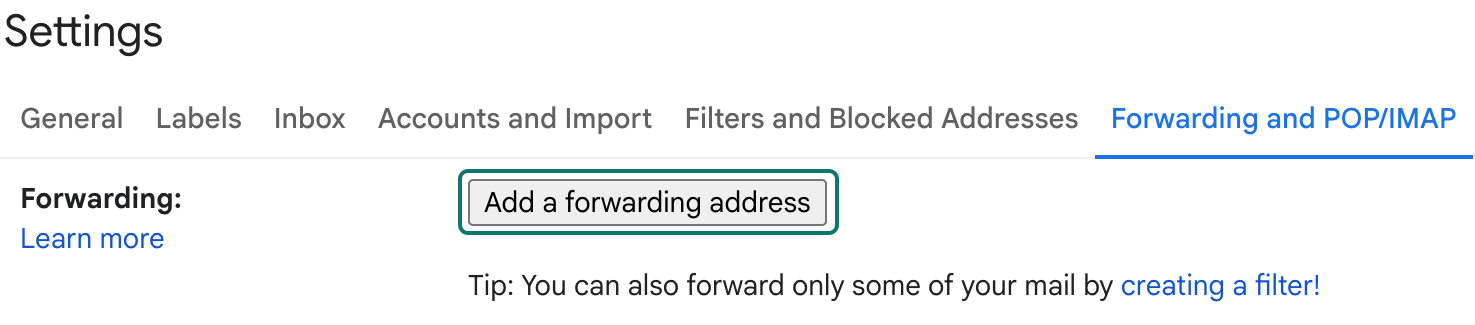
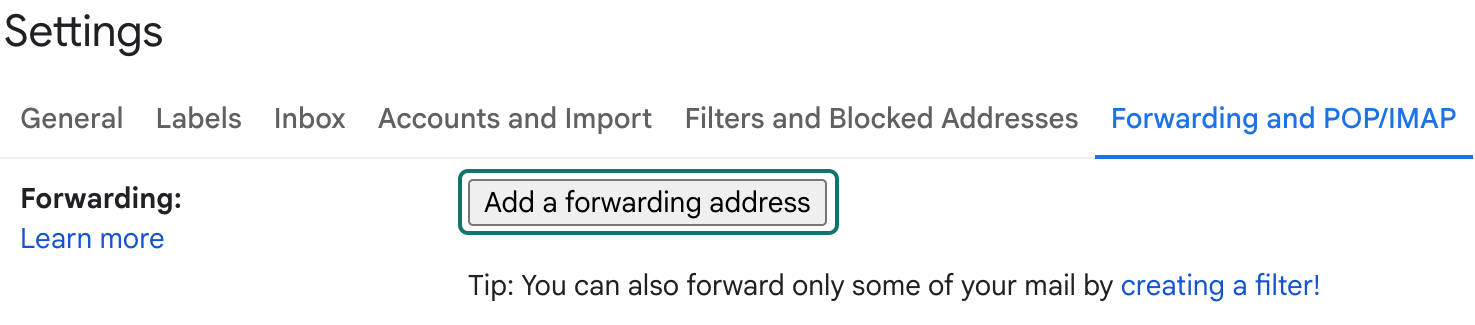
Click the Settings gear → See all settings → Forwarding and POP/IMAP.
 View full size
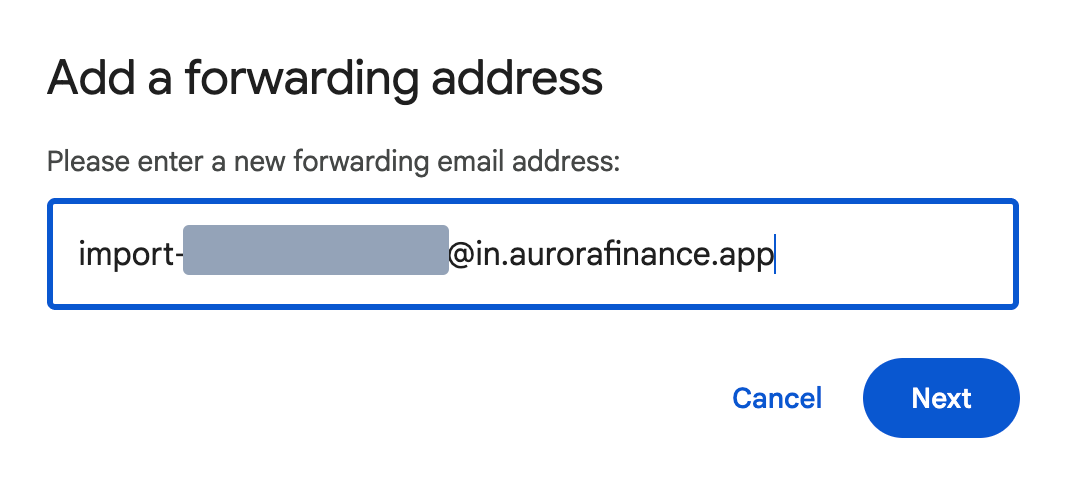
Open the forwarding tab and choose Add a forwarding address. Add your Aurora import address
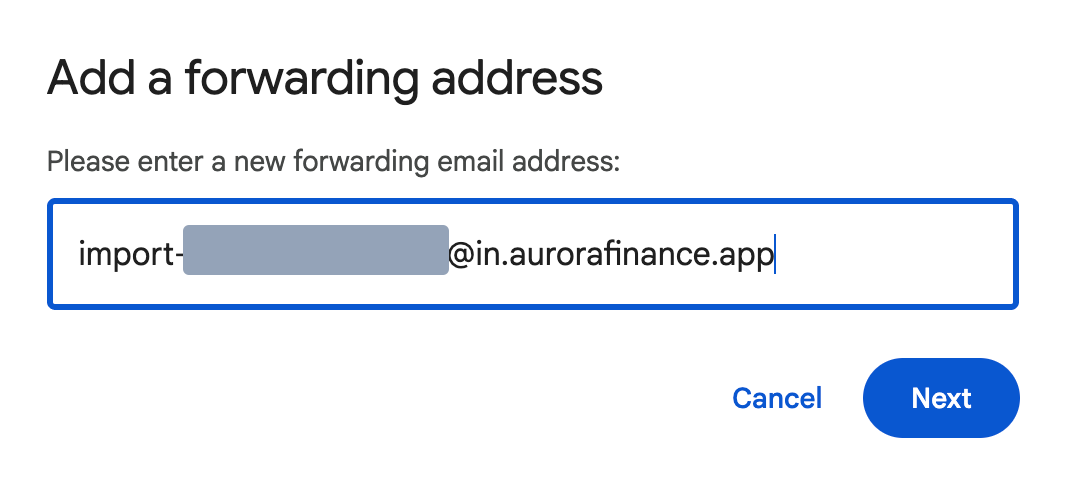
Click Add a forwarding address and paste the address you copied from Aurora. Click Next, then Proceed if Gmail asks you to confirm.
 View full size
Paste the import address you copied from Aurora. Complete Google’s security check, if asked
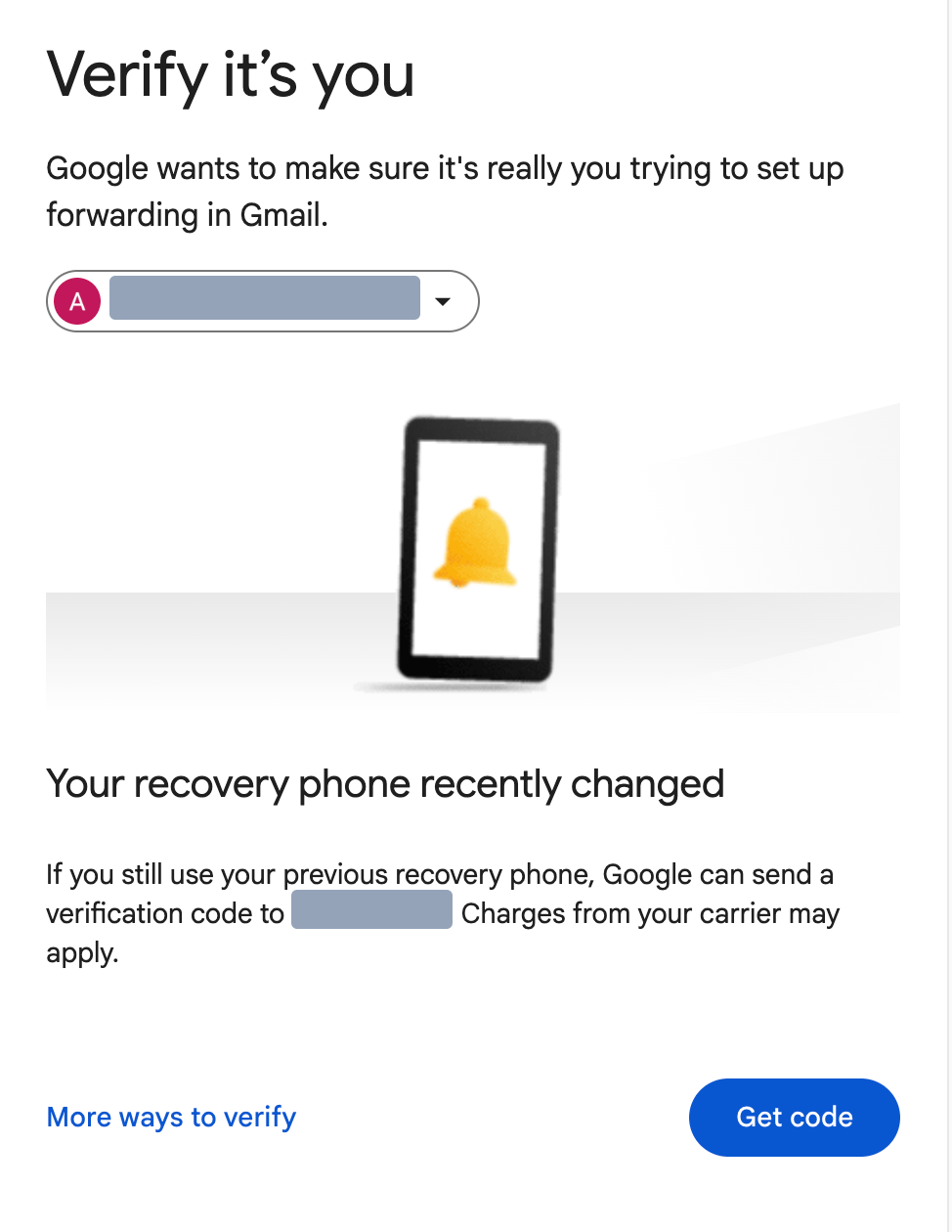
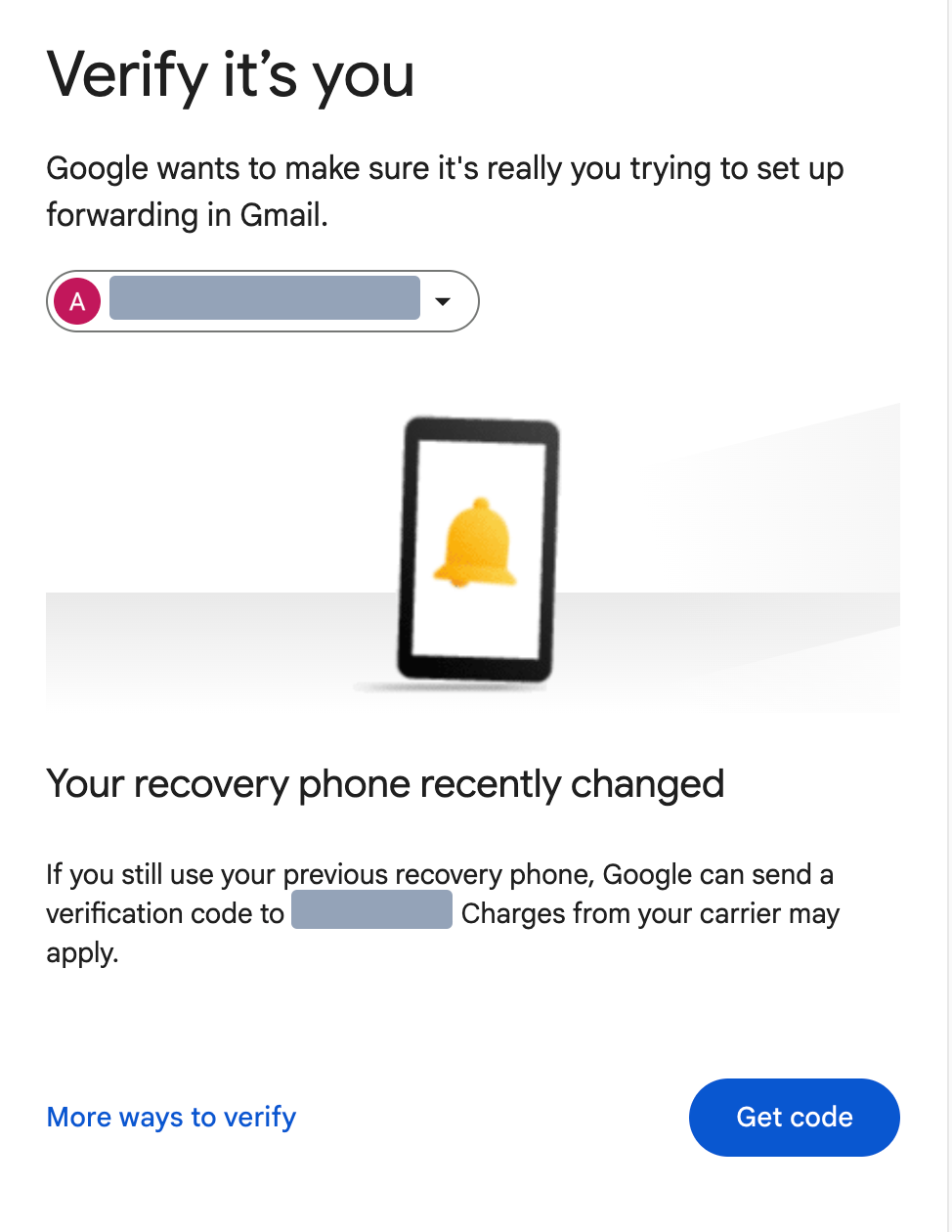
Google may ask you to verify your identity. Follow the instructions in the Google window; the options may differ from the example below.
See an example of Google’s security check
 View full size
Google may ask you to verify your identity before continuing.
Screens checked on 2026-10-04
Confirm the forwarding address
Confirm the address before creating any filters.
Find Google’s confirmation
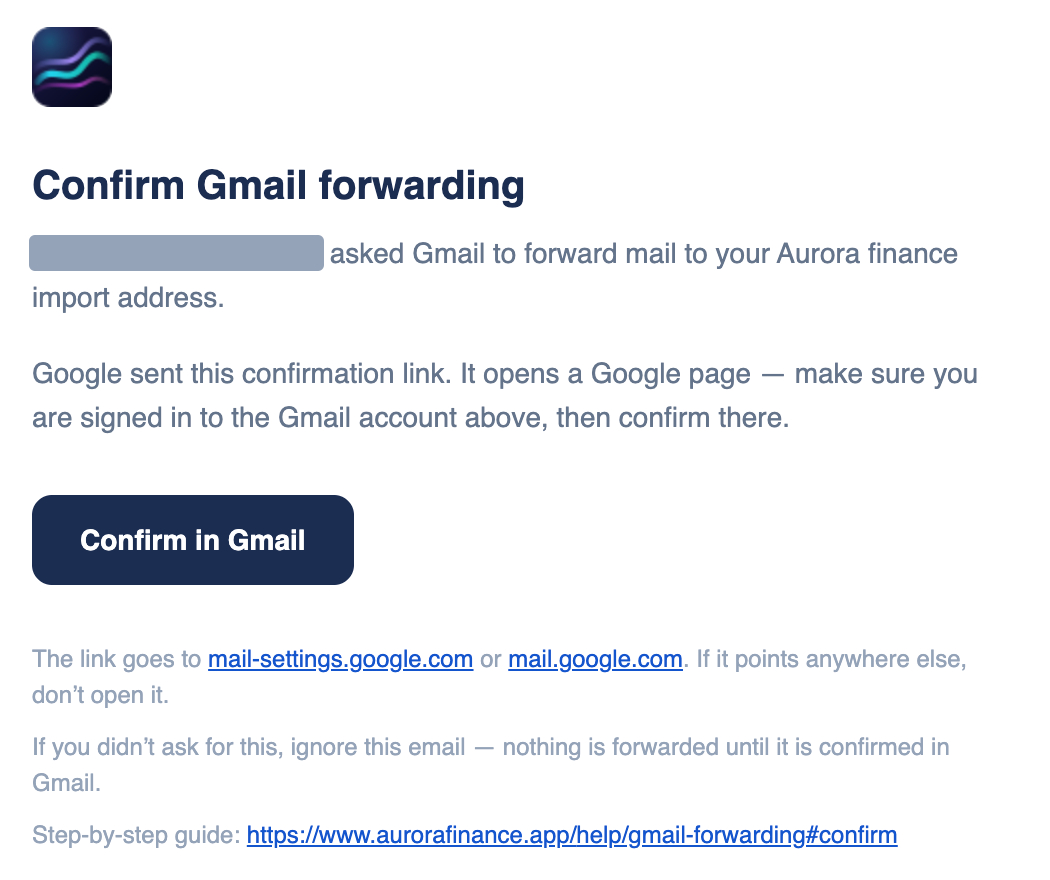
Aurora shows the confirmation in the setup assistant (step 2) and also sends it to your Aurora sign-in email. If you use different addresses for Aurora and Gmail, check your Aurora sign-in inbox.
Confirm with Google
Open the confirmation link from the assistant or click Confirm in Gmail in the email. On Google’s page, click Confirm. You must complete this step yourself.
 View full size
Use the confirmation sent to your Aurora sign-in email. If the email has not arrived
Wait a few minutes, then click Resend email beside the Aurora address in Gmail’s forwarding settings.

Screens checked on 2026-10-04
Create your receipt filters
A filter tells Gmail which emails to forward. Start with the filter file from Aurora.
Choose what to forward and download the file
In the setup assistant, English receipts are suggested first. Add other receipt languages, specific senders, or statements as needed. Click Download filter file.
Open Gmail’s filter settings
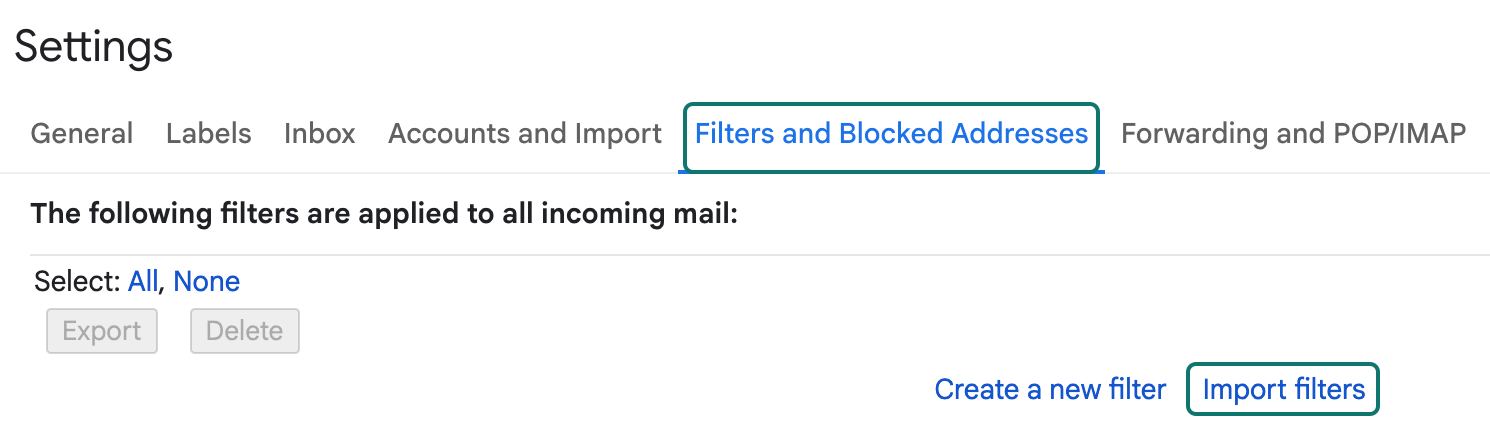
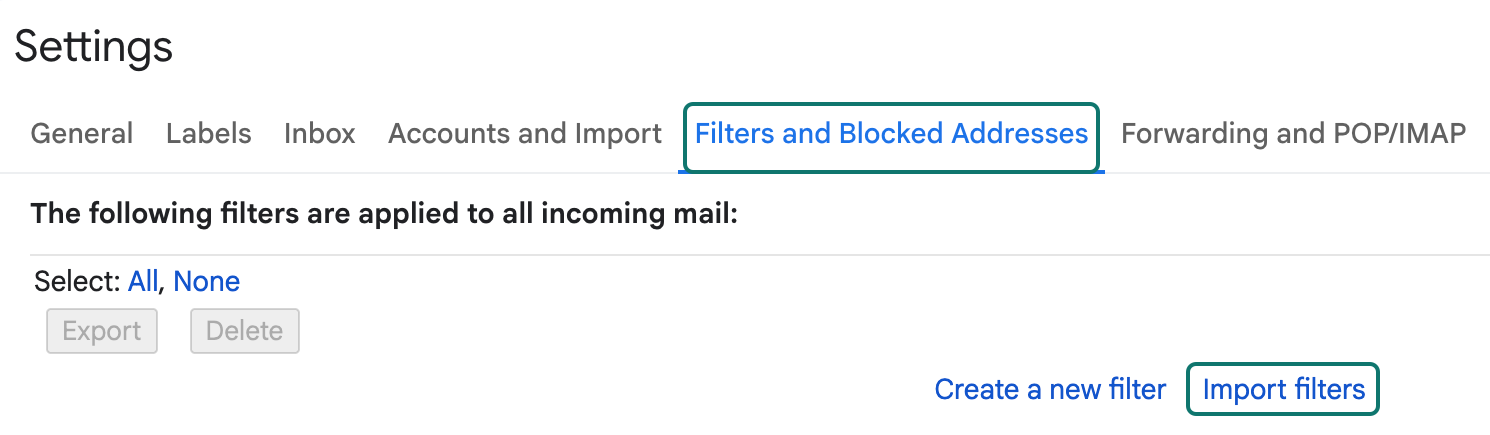
In Gmail, go to Settings → See all settings → Filters and Blocked Addresses. Click Import filters.
 View full size
Choose Import filters on the Filters and Blocked Addresses tab. Choose the downloaded file
Click Choose File and select the filter file you downloaded from Aurora, usually in your Downloads folder.
 View full size
Choose the filter file downloaded from Aurora. Open the file in Gmail
Once the filename appears beside Choose File, click Open file. This displays the filters for review; it does not create them yet.
 View full size
When the filename appears, select Open file. Review and create the filters
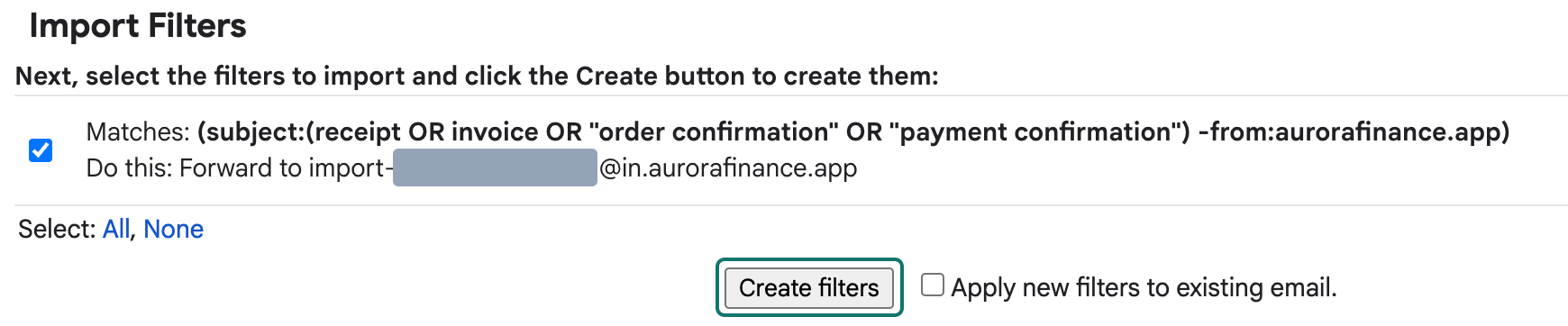
Check that each selected filter says Forward to your Aurora import address. Then click Create filters. Skip the Inbox is optional and off by default, so your receipts stay in your Gmail inbox too.
 View full size
Check the forwarding destination, then choose Create filters.


Prefer to create filters manually?
For each filter in the assistant, open See what this catches. In Gmail, click the search options icon → Create filter → select Forward it to → choose your Aurora address → Create filter.
Screens checked on 2026-10-04
Check your setup
Use Gmail to check the settings, and Aurora to check incoming imports.
Check the forwarding address
In Forwarding and POP/IMAP, check that your Aurora import address is confirmed.
Check the filter list
Open Filters and Blocked Addresses. Each Aurora filter should show Forward to your import address. Its query includes -from:aurorafinance.app; a statement filter also starts with from: and the selected bank domains.
 View full size
Your filter now appears in Gmail, with edit and delete controls. Check incoming receipts in Aurora
After a new email matches one of your filters, open Aurora’s Import history to check its progress or review any error.

Screens checked on 2026-10-04
Change or stop forwarding
Manage the filters in Gmail whenever your needs change.
Replace a filter
Edit the filter in Aurora’s setup assistant and download the updated file. In Gmail, delete the old version of that filter, then import the new file. Importing a file does not update an existing filter.
Stop forwarding to Aurora
Delete Aurora’s filters under Filters and Blocked Addresses. Then remove the Aurora address under Forwarding and POP/IMAP.
No Gmail connection to revoke
Aurora does not have access to your Gmail account. Gmail sends only the messages selected by your forwarding rules.
Troubleshooting
Start with the issue you are seeing.
The confirmation email is missing
Check the inbox for your Aurora sign-in email, which may differ from the Gmail address you are setting up. Then use Resend email in Gmail’s forwarding settings.
“Add a forwarding address” is missing
If a direct link shows an empty forwarding box instead, return to Gmail’s Inbox. Open the Settings gear → See all settings → Forwarding and POP/IMAP again.
Nothing is being imported
Confirm your sending address in Aurora. In the assistant, use See what this catches to check the filter. Also check that the destination ledger has an account.
Forwarding is disabled for a work account
Your Google Workspace administrator may have disabled automatic forwarding. Ask them whether forwarding is allowed.
An email arrived but the import failed
Open Import history in Aurora. The failed import includes the reason and any next steps.
What Aurora does with forwarded mail
You control what Gmail sends to Aurora.
Receipts and statements become transactions
Aurora reads forwarded receipts and statements to create transactions. Forwarded files are kept for a limited time, then deleted.
Keep your filters specific
Forward only the receipts and statements you want to import. Review the privacy policy for details about how Aurora handles your data.
Ready to set up forwarding?
The setup assistant keeps your address and filter file in one place.
Open the setup assistant